Student Onboarding (Invitations)
Highlight on the standard invitation process to bring new students into the portal and pre-assign their exam courses.
Onboarding is the process of inviting a new user to join your portal. This ensures that every student account is correctly linked to your administration and has the appropriate course access from day one.
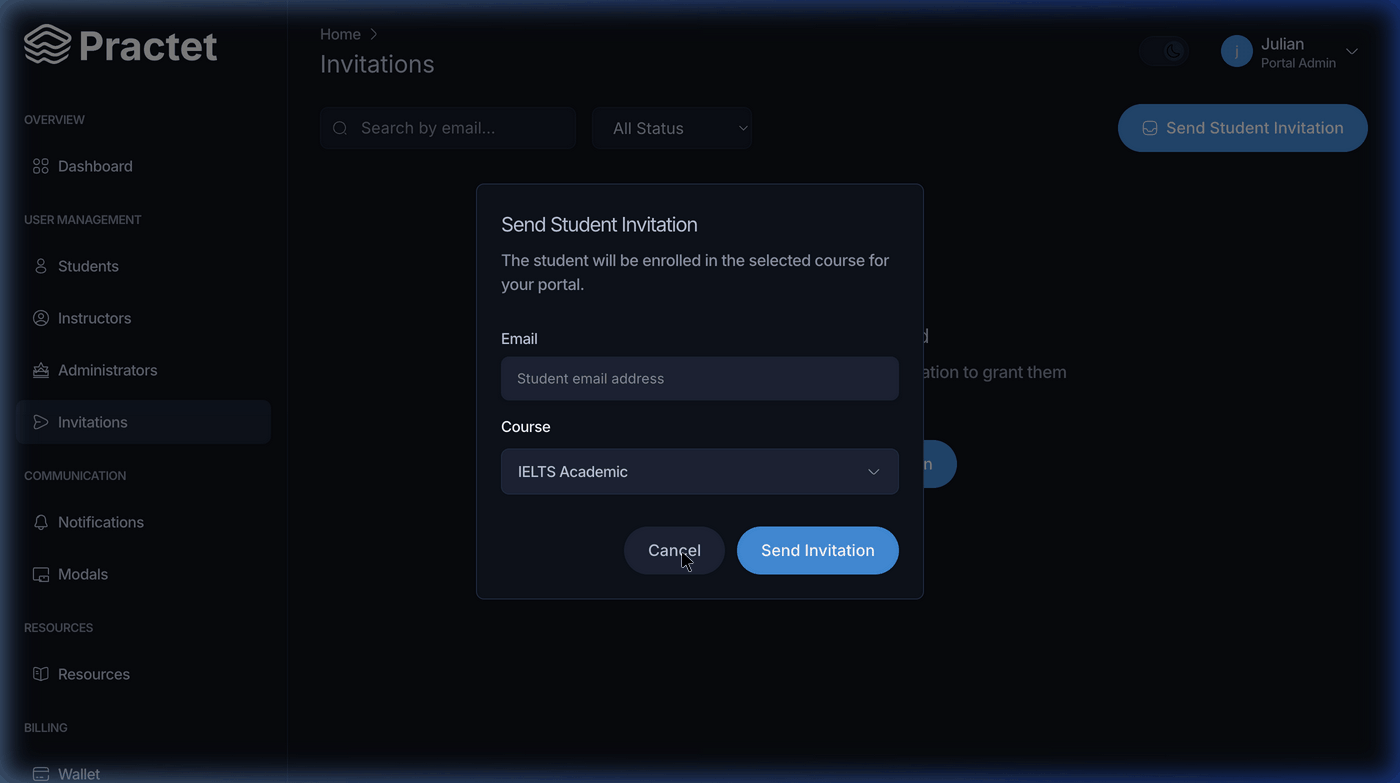
1. Sending an Invitation
The most efficient way to onboard a student is via the Invitations tool. This sends an automated email with a secure registration link.
Step-by-Step Instructions:
Navigate: Click on
Invitationsin the sidebar.Launch Form: Click the blue
Send Student Invitationbutton.Fill Details:
Email: Enter the student's email (this will be their username).
Course: Select the exam type (e.g., IELTS Academic, TOEFL, etc.).
Send: Click
Send Invitation.
2. The Student's Perspective (Email)
Once you send the invitation, the student receives an email from the Practet Portal.
The Link: The email contains a "Join Portal" or "Accept Invitation" button.
Registration: The student clicks the link, enters their name, and sets a password.
Auto-Enrollment: Once they log in, the course you selected during the invitation will be waiting on their dashboard.
3. Tracking Onboarding Status
You can monitor the progress of your invitations directly from the Invitations list:
Pending: The email has been sent but the student hasn't registered yet.
Accepted: The student has successfully joined the portal.
Expired: The link was not used within the allowed timeframe.
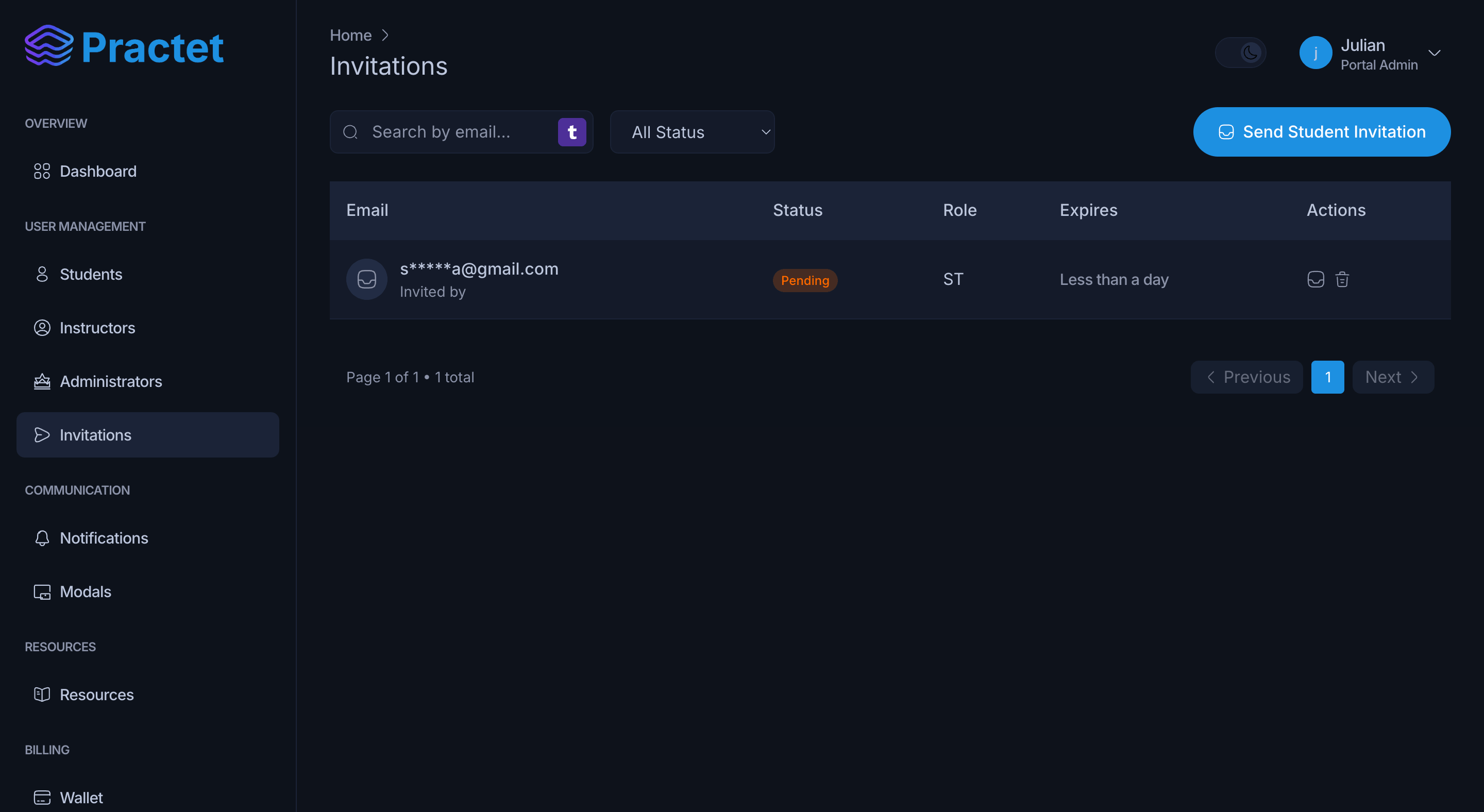
[!TIP] If a student says they didn't get the email, check the "Pending" list and click the Resend icon to trigger a fresh invitation link.
You might also find these helpful
Still need help?
Couldn't find what you were looking for? Our support team is ready to assist you with any questions.Contact us